The dashboard can be access by your IT, Sales, Finance and other team (according to you). They have been given to access predetermined menus.
1. Go to Menu > Settings > Sub Accounts Management
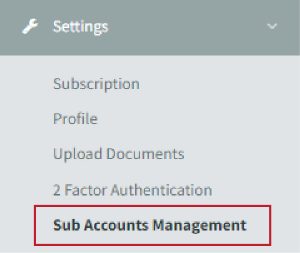
2. Refer to Update Sub Accounts

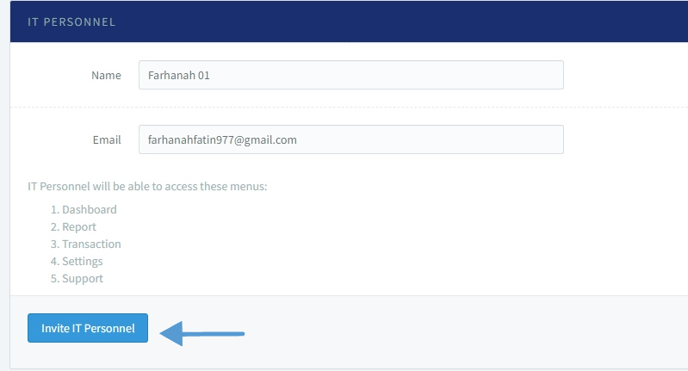
3. Fill in the details as requested: Name & Email. Then click ‘Invite’ button for:
- IT Personnel will be able to access these menus:
- Dashboard
- Report
- Transaction
- Settings
- Support
- Sales Personnel will be able to access these menus:
- Dashboard
- Product
- Product Collection
- Affiliate
.png?width=688&height=378&name=Untitled%20design%20(1).png)
- Finance Personnel will be able to access all except these menus:
- Product
- Product Collection
- Settings
- Support
- Affiliate
.png?width=688&height=386&name=Untitled%20design%20(2).png)
- Other Personnel will be able to access these menus:
- Dashboard
- Transaction
.png?width=688&height=355&name=Untitled%20design%20(3).png)
to invite them for dashboard access.
4. After the invitation has been made, Admin Personnel will receive an email from senangPay with a link to senangPay dashboard to create Login Password.
Please note:
- The link will expire in 3 days after entering and inviting new personnel
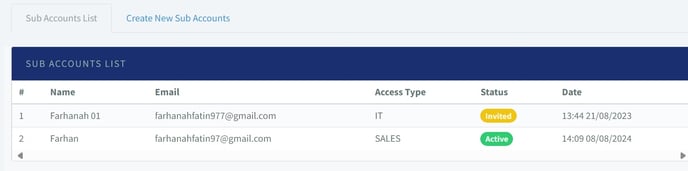
The list of Sub Account status
1. Go to Menu > Settings > Sub Account Management
2. Refer to Sub Account List
- Invited – Personnel has been received with an email but haven’t created the sub account.
- Active – Personnel has successfully created a new login account.