
Digital Catalog Dashboard
You can find the Digital Catalog settings under “Accept Payments” > “Digital Catalogue” in your new DOKU dashboard.
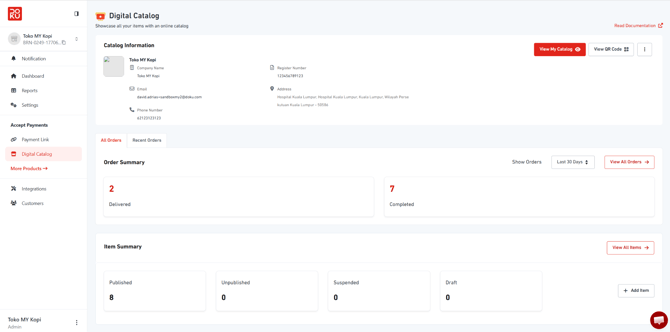
Select an option below to quickly navigate to that section:
1. Catalog Information Settings
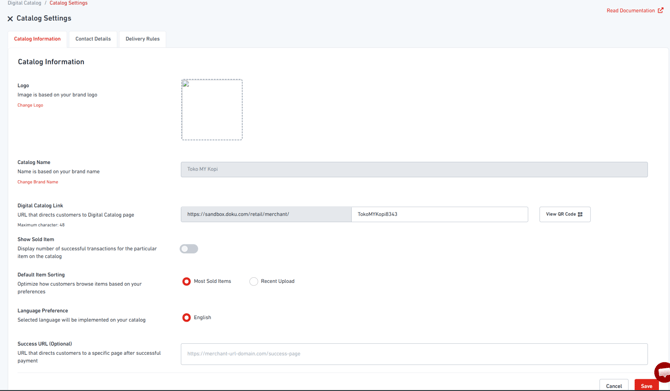
Set up your catalog details, including logo, catalogue name, link, and display preferences.
-
Logo
Your catalogue will use your business logo by default. To update it, go to the Business Info page or click “Change Logo.”
-
Catalogue Name
Your catalogue name is based on your business name. To update it, go to the Business Info page or click “Change Business Name.”
-
Digital Catalogue Link
Customize your catalogue URL to match your business name. Maximum 48 characters.
-
Show Sold Items
Toggle to display the number of successful sales for each item in your catalogue.
-
Default Item Sorting
Choose how your items are displayed to customers:
-
Best seller
-
Recent uploads (new products)
-
-
Language Preference
Select the language your customers will see when visiting your catalogue.
- Success URL (optional)
Set a URL to redirect customers after a successful order.
2. Contact Details Settings
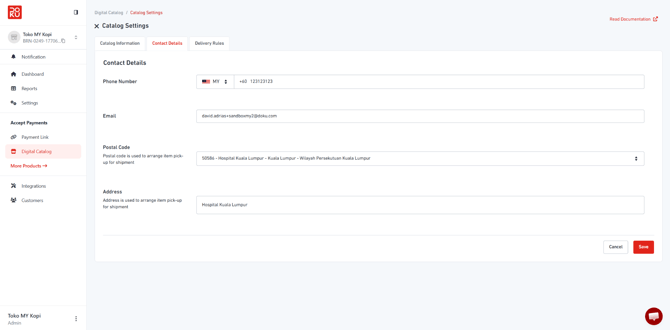
Provide your contact information so customers can easily reach you.
-
Phone Number
Enter your business phone number (numbers only).
-
Email
Enter your business email address.
-
Postal Code
Enter your business postal code.
-
Location
Specify your business location.
-
Address Details
Provide your full address, including street name, building number, and any additional details (e.g. unit number).
3. Delivery Rules Settings
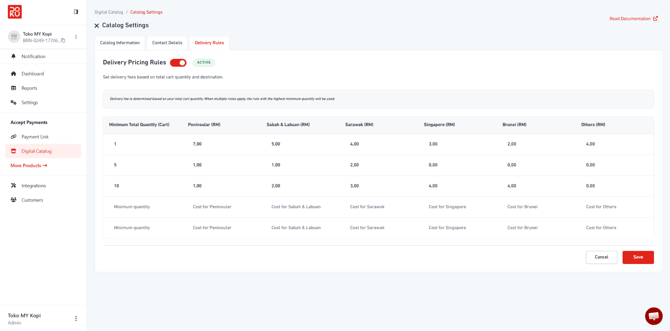
Set your delivery charges based on order quantity and customer location.
-
Enable Delivery Rules
Toggle this ON to apply delivery charges based on your configured rules. When enabled, delivery fees will be automatically calculated based on:
-
Order quantity
-
Customer location
The system will apply the most relevant rule based on the highest matching minimum quantity.
-
-
Minimum Quantity
Set the minimum number of items required for each delivery rule. - Delivery Pricing by Location
Define delivery charges for each region:- Peninsular Malaysia
- Sabah & Labuan
- Sarawak
- Singapore
- Brunei
- Others
4. Add Items Information
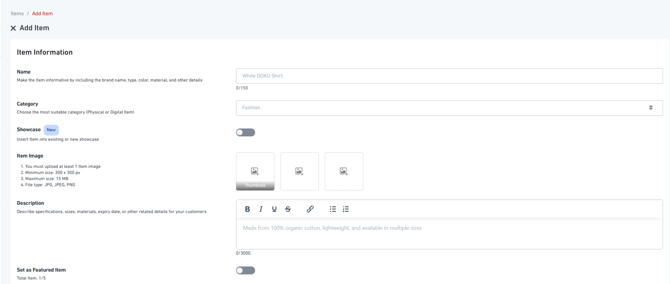
-
Title
Enter the item name. Maximum 150 characters.
-
Category
Select the item type: Physical Product or Digital Product.
-
Showcase
Group your item under a showcase (e.g. related products or special collections).
-
Item Images
Upload images to represent your item:
-
Minimum: 1 image required
-
Maximum: 3 images
-
Minimum resolution: 300 × 300 px
-
Maximum file size: 15 MB per image
-
Supported formats: JPG, JPEG, PNG
-
-
Description
Add a detailed description of your item. Maximum 3,000 characters.
-
Featured Item
Pin this item to the top of your catalogue for better visibility.
Up to 5 items can be featured.
5. Showcase
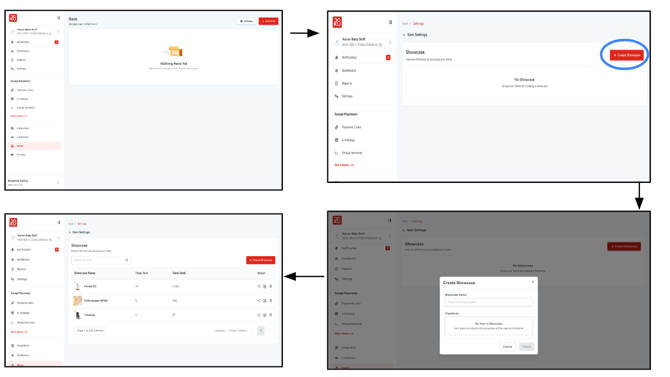
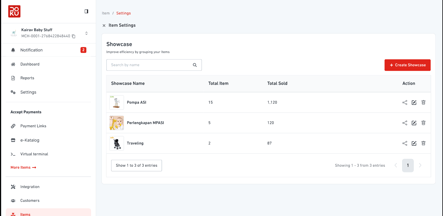
To create Showcase, head to items settings page
-
Share
Share your showcase with customers via a link or directly on social media.
-
Edit
Update your showcase details, including the name and image (if items are added)
- Delete
Remove the showcase from your catalogue.
6. Add Item - Variant & Stock
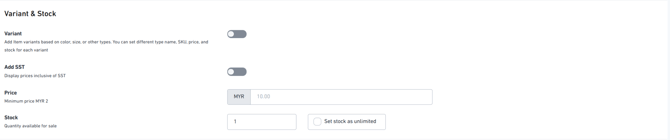
- Variant
Add variations to your item, such as size, color, or other options.
Choose from: No Variant, 1 Variant, or 2 Variants
Maximum: 2 variant types - Add SST
Enable SST for this item using the toggle, and set the SST percentage.
Numeric values only. - Price
Set the price of the item.
If variants are enabled, set the price for each variant individually.
Numeric values only. - Stock
Set the available stock for the item.
If variants are enabled, set stock for each variant separately.
Option to set stock as unlimited.
7. Variants
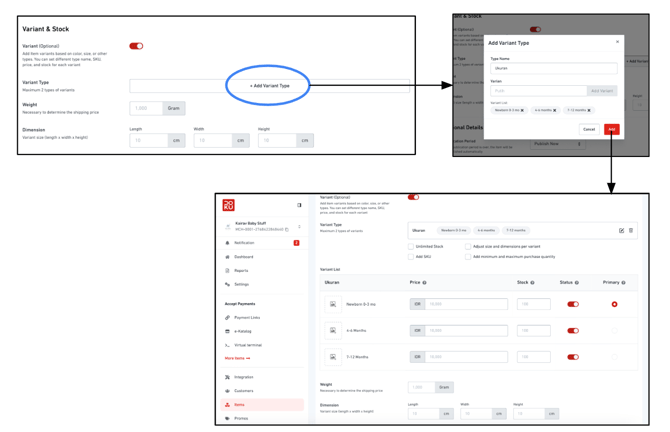
Steps to Add 1 Variant
-
Click “Add Variant”
-
Apop-up will appear—enter the Variant Type Name (e.g. Size, Color)
-
Add the options under the variant type (e.g. S, M, L)
-
Upload an image for each variant (optional)
-
Set the price and stock for each variant
Steps to Add 2 Variants
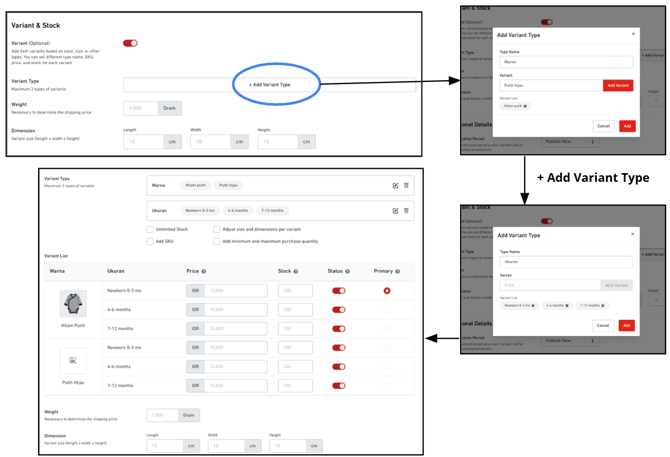
- Click on Add Variant
- Modal will appear, fill Type Name
- Add variant to variant Type
- Add Another Variant Type
- Add variant to variant Type (2)
- Upload photo for each variant combination
- Fill Price and Stock of each variants combination
8. Stock-keeping Optional Details
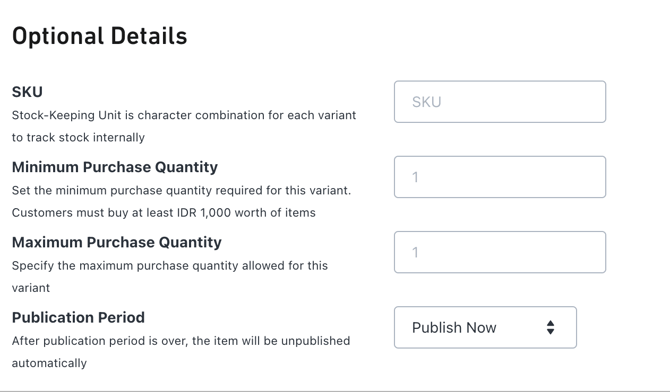
- SKU
A unique code to help you track and manage your item internally. - Minimum Purchase Quantity
Set the minimum number of units a customer must purchase. - Maximum Purchase Quantity
Set the maximum number of units a customer can purchase. - Note:
These fields (SKU, Min/Max Quantity) are shown when Variants are not enabled
When Variants are enabled, these settings will be managed within the variant table instead - Publication Period
Schedule when your item will be available in your catalogue:
- Publish now
- Publish later
- Set a custom date and time range
9. Publication Period
- Publish Now
Verification starts immediately.
Once approved, the item will be published automatically. - Scheduled Publication
Set a specific date and time for your item to go live.
- If approved before the scheduled date → Status: Scheduled (will auto-publish on the set date)
- If approved on or after the scheduled date → Status: Published
- If rejected at any time → Status: Rejected
- Custom Period
Set a start and end date for your item availability.- If approved before the start date → Status: Scheduled (will publish on start date)
- If approved between start and end date → Status: Published
- If approved after end date → Status: Unpublished
- If item reaches end date after being published → Status: Unpublished
- If rejected at any time → Status: Rejected
10. Custom Product Additional Fields
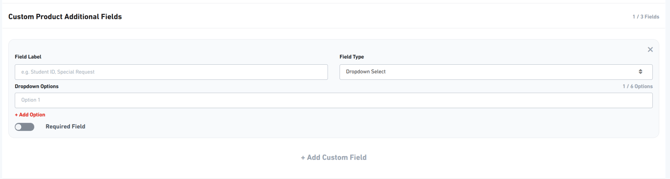
- Add up to 3 custom fields to collect additional information from customers.
- Set your own field label and choose the field type:
- Text
- Dropdown - For dropdown fields, you can add up to 6 options
- Use the Required toggle to make the field mandatory
- When enabled, customers will be prompted to fill in these fields on the order page.
11. Item Details Page
-
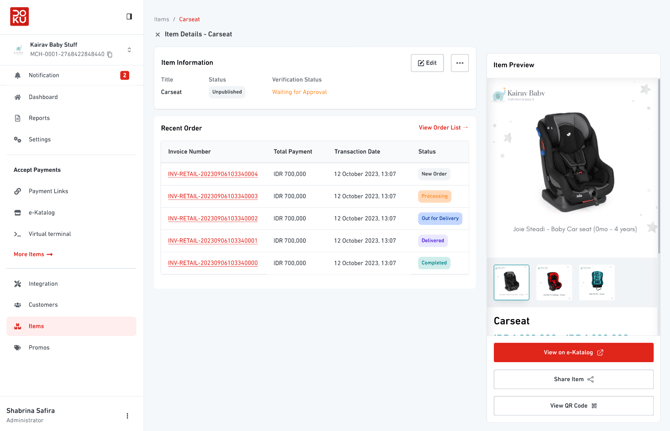
This page includes:
-
Item Information
-
Recent Orders
-
Edit Item
-
-
Edit Item
Update your item details such as name, price, and stock.
-
Note:
-
Changes to stock are updated immediately
-
Changes to other item details (e.g. name, price, description) will require re-verification before the item is published again
-
12. QR Code Sharing
-
View QR Code
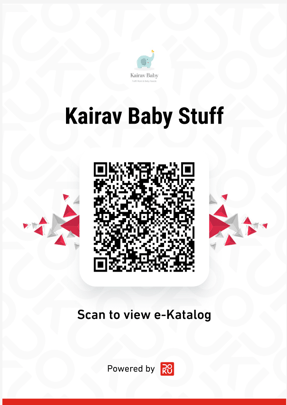
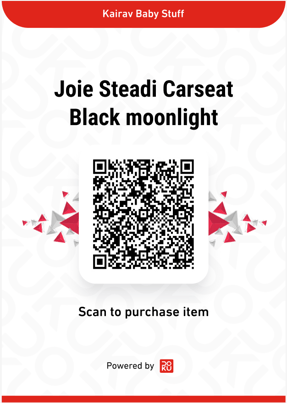
Click “View QR Code” to open the QR code in a pop-up.QR codes are available for both your Digital Catalogue and individual items.
-
You can:
-
Download the QR code
-
Print the QR code
-
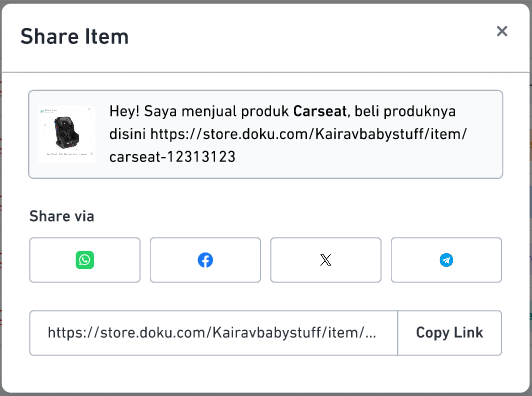
13. Share via Link and Social Media
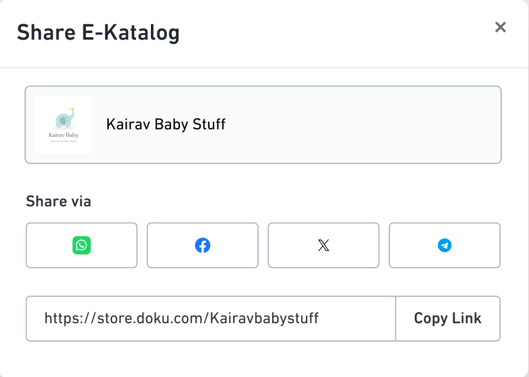
A pop-up will appear when you click “Share Catalogue” or “Share Item.”
From here, you can easily share your catalogue or item with customers through multiple official channels.
Meanwhile, you can also:
- Copy the shareable link to send via any platform (e.g. Instagram, email, SMS)
- Quickly promote your products across different channels to reach more customers
14. Review Order Detail
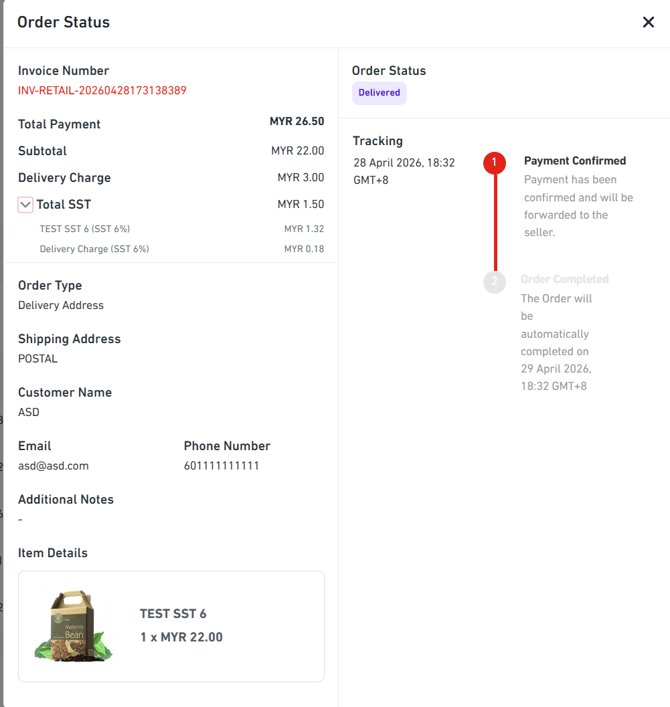
This page includes:
-
- Order Information
- Payment & SST Breakdown
- Item Details
- Order Status & Tracking